


The sevaarth Mahakosh portal is your go-to digital partner platform for all the state government employees and pensioners in the state of Maharashtra. The Sevaarth Mahakosh makes financial transactions, service requests and similar functions easier and digital. From salary slips and pensions to GPF statements, this online portal will provide you with all the required details at a convincing speed and accuracy. This page will help you understand what Sevaarth Mahakosh is, what its functions are, and how to avail various services associated with it.
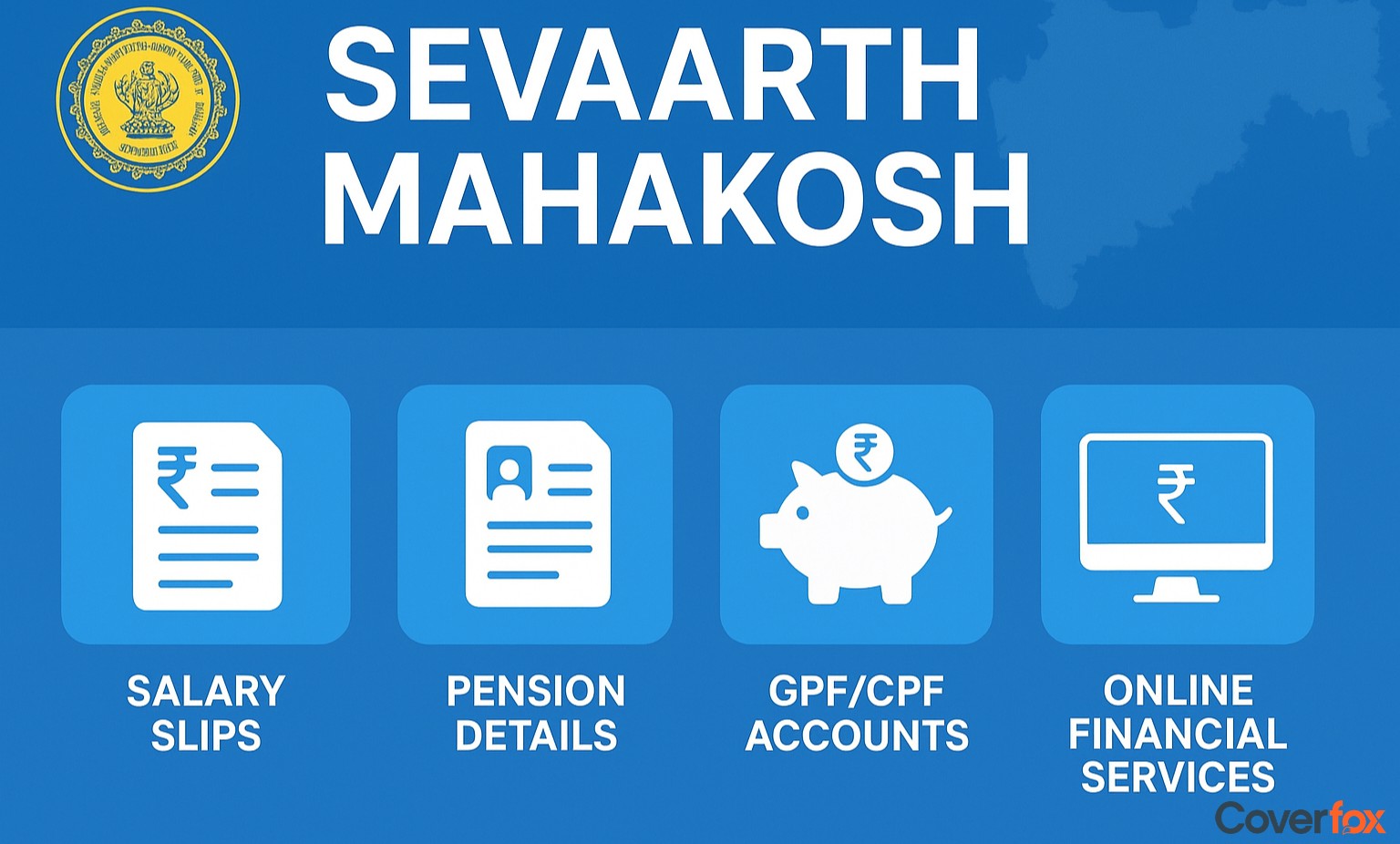
Sevaarth Mahakosh is an integrated financial management system developed for Maharashtra government employees and pensioners. Managed by the Directorate of Accounts and Treasuries (DAT), Sevarth Mahakosh operates under the Integrated Financial Management System (IFMS) and digitises payroll, pension, loans, GPF/NPS tracking, and receipts.This digital platform enhances transparency, ensures timely payments, and reduces manual administrative work across government departments.
From salary processing to pension management and fund tracking, the Sevaarth Mahakosh services ensure seamless operations, transparency, and easy access to essential financial information - all through one unified system.
| Feature | Main Function |
|---|---|
| Payroll | Automates the preparation and disbursement of monthly salaries for government employees. |
| NiwruttiVetan | Manages pension payments and related records for retired employees. |
| GPF/CPF/DCPS | Tracks contributions, withdrawals, and balances in General Provident Fund, Contributory Provident Fund, and Defined Contribution Pension Scheme. |
| Loans & Advances | Facilitates the management of employee loan applications, approvals, and repayment tracking. |
| e-Receipts | Enables digital payment collection and receipt generation for various government transactions. |
| Leave Management | Allows employees to apply for, track, and manage their leaves online. |
| Bill Management | Handles the preparation, submission, and tracking of departmental bills. |
| Budget & Expenditure Monitoring | Helps departments plan, allocate, and monitor budgets efficiently. |
| Audit Trail | Maintains digital records of all financial transactions to ensure accountability and transparency. |
| Reports & Analytics | Provides detailed reports and insights for administrative and financial decision-making. |
The Maharashtra Sevaarth Mahakosh is designed exclusively for government employees and pensioners to manage their financial and service-related information digitally. To ensure secure access and proper record management, only authorised individuals can register and use the portal.
Sevaarth Mahakosh registration is available to Maharashtra government employees, pensioners and authorised department users; the exact route (Employee / Pensioner / Department login) is selected on the portal’s login page.
Go to the Sevaarth Mahakosh portal (official link: https://sevaarth.mahakosh.gov.in/) using a desktop or mobile browser.
Choose whether you are an Employee, Pensioner, or Department/DDO on the login screen.
Before logging in, keep your Sevaarth ID, Aadhaar-linked bank account details, registered mobile number, and departmental approval (if applicable) handy.
In the username field, enter your unique Sevaarth ID exactly as issued by your Drawing and Disbursing Officer (DDO).
For first-time login, use the default password (usually ifms123 for pensioners, or the department-issued password for employees).
Tip: The default password may vary depending on your department—check with your DDO if unsure.
Enter the security captcha shown on screen and click Login to proceed.
If prompted, an OTP will be sent to your registered mobile number. Enter it to verify your identity.
On first login, the system will ask you to change your default password. Create a strong new password to keep your account secure.
After logging in, verify and update your mobile number, email ID, and bank account in your profile section to ensure future communication and payments are smooth.
If you’re a new user, your DDO (Drawing and Disbursing Officer) may need to approve or activate your account. Confirm once this step is complete.
Best Practice: Always change your default password after first login, log out after every session, and verify details entered by the DDO or CSC operator before final submission.
Sevarth Mahakosh requires certain identity, service, and banking details so that employees and pensioners can securely access payroll, pension, and other financial services online. Keeping these details ready ensures a smooth registration and login experience.
To download Sevaarth Payslip and Form-16 from Sevarth, follow these simple and easy steps:
Tip: Save a digital copy and print a hard copy for your records; always check tax deductions and PAN or Aadhaar details on Form-16 before filing returns.
Pensioners can easily view their monthly pension slips, credit details, and related reports through the NiwruttiVetan (Pension Module) on Sevarth Mahakosh.
Tip: Always verify that your bank account and PAN details are updated to ensure timely pension credits.
If you need to change your password (after login) or reset it because you forgot it, follow these clear steps.
The Sevaarth Mahakosh portal provides a dedicated section to manage Group Provident Fund (GPF) and Defined Contribution Pension Scheme (DCPS/NPS) details. This module helps employees track monthly contributions, view recovery statements, and even request withdrawals (if the feature is enabled by their department).
Here’s how to check your GPF or NPS details:
Tip: Always verify that your contribution records match your payslip deductions. Any mismatch should be reported to your DDO or Treasury Accounts Officer immediately.
Reference: Detailed instructions are available in the Sevaarth GPF and DCPS/NPS User Manuals on the official Mahakosh website under Help → User Manuals → GPF/DCPS Module. These manuals outline screen navigation, field names, and sample statements for employee reference.
The Sevaarth portal plays a major role in holding finances of employees and pensioners and they can enjoy multiple benefits like:
Employees and pensioners can view or download salary and pension slips anytime.
Real-time visibility into tax, GPF/NPS, and loan deductions helps ensure accuracy.
Users can check loan balances, repayment schedules, and application status directly online.
Automated digital workflows minimise manual errors and departmental delays.
Simplifies annual income tax filing by providing downloadable tax certificates.
One integrated system managed by the Directorate of Accounts and Treasuries ensures data integrity and authorised access.
Pensioners can track monthly credits, arrears, and pension slips through the NiwruttiVetan (Pension) module.
Services are accessible from anywhere, allowing users to manage finances beyond office hours.
Here are the most common issues users face on Sevaarth Mahakosh portal and how to fix them:
| Issue | Possible Cause | Quick Fix / Action |
|---|---|---|
| Cannot Login | Incorrect Sevaarth ID or pending approval | Recheck your Sevaarth ID; confirm with department if user approval is completed |
| Payslip Missing | Employee approval not completed or payroll not yet processed | Contact DDO/Accounts section to ensure payroll is run and employee data is approved |
| Pension Mismatch | Wrong credentials in Pensioner Corner | Verify pensioner login format and credentials in the Niwruttivetan/Waahini module |
| GPF Entries Missing | Delay or error in data upload by Accounts Department | Contact your departmental accounts office for statement update or correction |
| File Download Errors | Outdated browser or missing PDF reader | Use latest Chrome/Edge browser and ensure a valid PDF viewer is installed |
| OTP Not Received | Mobile number/email not updated in portal | Check and update registered contact details through your office admin |
| Data Mismatch | System sync or entry error | Raise a ticket via departmental MIS or visit official website for assistance |
A. The login ID is the pensioner’s assigned Sevaarth ID; the default password for first-time login is ifms123.
A. Log in → go to Employee Services/Payroll → select the financial year and month → view or download the payslip PDF.
A. Visit the portal, choose your user type (Employee/Pensioner/Department), enter your Sevaarth ID and password, complete the captcha or OTP, and change your password on first login.
A. After logging in, go to “Pay Slip” under Employee Services, choose the month and year, and click Download.
A. Sevaarth is part of the state’s Integrated Financial Management System (IFMS) that connects employee and pensioner services with treasury and departmental data.
A. GRAS (General Receipt Accounting System) manages digital receipt data that integrates with Sevaarth for accurate financial record-keeping.
A. Click “Forgot Password” on the login page, enter your Sevaarth ID, verify through OTP, and set a new password.
A. The default password is ifms123 for both employees and pensioners.
A. It offers instant access to payslips, pension details, tax forms, and deductions — ensuring transparency and convenience.
A. Log in to your profile and update your mobile number, or request your DDO/department to do so.
A. Yes, log in and open the GPF/CPF/DCPS module to view your contribution details and balances.
A. Contact your DDO or accounts section to raise a correction request for the next payroll cycle.
A. Yes, the portal works 24×7 and can be accessed via mobile or desktop browsers.
A. Log in, go to the Tax/Payroll section, select the financial year, and download Form-16 in PDF format.

