You can download your RC online through DigiLocker or access a virtual RC through the mParivahan app. DigiLocker lets you fetch, view, download and share an issued digital RC, while mParivahan provides quick access to your virtual RC. Both are government-backed options for accessing your vehicle registration details electronically.
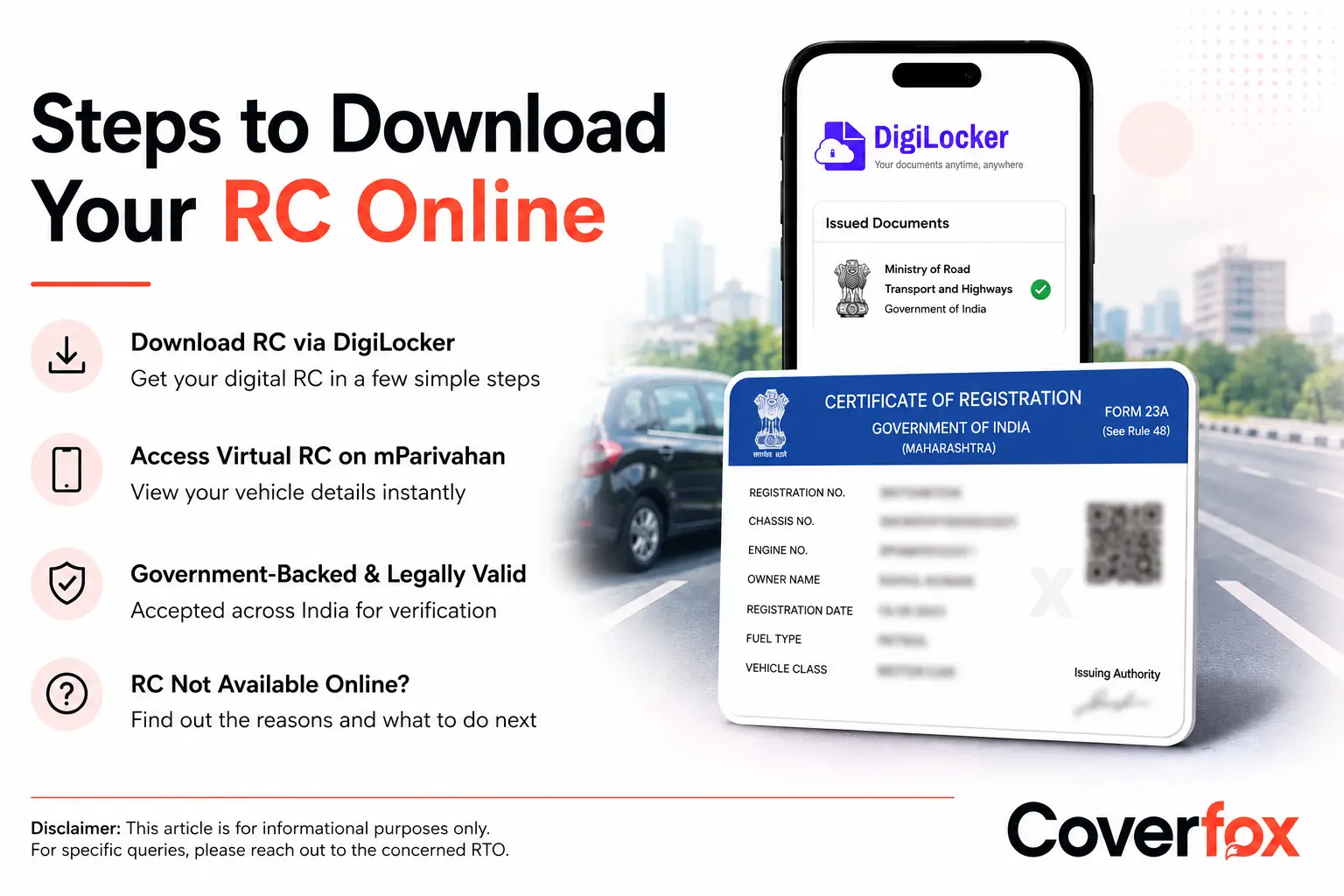
Losing your physical RC book, or simply not wanting to carry it around, doesn't leave you without proof of registration anymore. Two official government services, DigiLocker and mParivahan, let you pull up a legally valid digital RC in a few minutes, whether it's for a car, bike, or any other registered vehicle. Here's exactly how to download RC online through both, and what to do if your vehicle's record doesn't show up.
How to Download RC Online Through DigiLocker
DigiLocker is integrated with the Ministry of Road Transport and Highways' National Register, which contains vehicle registration and driving licence records. A vehicle RC fetched through DigiLocker's Issued Documents section is legally recognised at par with the original physical document.
Steps to Get Your Digital RC on DigiLocker
Log in to your DigiLocker account. If you are a new user, register using your mobile number and complete Aadhaar verification. To fetch an RC through the MoRTH integration, your Aadhaar should be linked to your DigiLocker account.
Open the Issued Documents section in your DigiLocker account.
Select Get More Issued Documents or use Browse/Search Documents, depending on the version of DigiLocker you are using.
Select Ministry of Road Transport and Highways under the relevant department or transport category.
Choose Registration of Vehicles and enter your vehicle registration number and chassis number as requested.
Give the required consent and click Get Document. DigiLocker will fetch the RC details from the MoRTH National Register.
Once the record is successfully fetched, the digital RC will appear in your Issued Documents section, where you can view, share, or download it.
Note: If the RC cannot be fetched, DigiLocker says the vehicle record may not be available in the National Register, or the details entered may not match the issuer's records. The name on the Aadhaar-linked DigiLocker account also needs to match the name in the RC database.
How to View or Access the Digital RC
Once you complete your RC download through DigiLocker, you can access the document anytime from your account. The issued RC is stored digitally, so you don't need to repeat the fetch process each time.
Open Issued Documents: Go to the "Issued Documents" section in DigiLocker to find your digital RC.
View or Download: Open the RC to view its details, download a copy, or share it when required.
Use the Government-Issued RC: The RC available under "Issued Documents" is fetched directly from the government database and digitally signed, making it legally valid.
Know the Difference: RC copies that you manually upload are stored under "Uploaded Documents" and do not have the same government verification as an issued document.
Show the Issued RC: When asked to provide your RC to an authority, use the government-issued version from the "Issued Documents" section.
How to Download RC Through the mParivahan App
mParivahan, developed by the National Informatics Centre under the Ministry of Road Transport and Highways, gives you a virtual RC without needing a DigiLocker account at all, and it works just as well for a bike RC download as it does for a car.
Steps to Access Your Virtual RC
Install mParivahan from the Google Play Store or Apple App Store, or open it if it's already on your phone.
Enter your vehicle's registration number in the search field.
The app pulls up your vehicle's record directly from the VAHAN database.
Tap into the record to access your virtual RC.
Note: The virtual RC lets you access your vehicle's registration details electronically through the mParivahan app.
DigiLocker vs mParivahan for RC Download
| DigiLocker | mParivahan |
|---|---|
| Fetches an issued digital RC | Provides a virtual RC |
| RC is stored under Issued Documents | RC is accessed through the mParivahan app |
| RC can be viewed, downloaded, and shared | Primarily used to view and display the virtual RC |
| Issued RC is legally recognised on par with the physical original | Virtual RC is accepted as an electronic vehicle document |
What to Do If Your RC Is Not Available Online
If your RC is not available online, there may be several reasons:
Record not found: Your vehicle's registration record may not be available in the National Register.
Details entered incorrectly: A single wrong digit in the registration or chassis number is enough to return no result. Double-check against your physical RC or car insurance documents before trying again.
Name or details mismatch: If your name or address on file doesn't match what you're entering, some platforms won't return a match even though the vehicle exists in the system.
Newly registered vehicle: A brand-new registration can take a few days to reflect online, even though the physical process is complete.
Before contacting the RTO, check that you've entered the registration number exactly as it appears on your physical RC (no extra spaces, correct state code), confirm the chassis number if the platform asks for it, and try both DigiLocker and mParivahan. If neither works after these checks, your local RTO can confirm whether your vehicle's record has been migrated to VAHAN at all.
Key Takeaway
DigiLocker and mParivahan make it easy to access your vehicle's digital RC without carrying the physical document. DigiLocker lets you fetch the issued RC from the MoRTH database, while mParivahan provides access to a virtual RC through the app. If your vehicle doesn't show up on either, an online RC book download issue is, in most cases, a data sync problem rather than anything wrong with your registration itself, and a quick RTO check will confirm that.
Frequently Asked Questions
How can I download my car RC online?
Use DigiLocker to fetch and download your car's RC as an issued digital RC, or mParivahan to view a virtual RC instantly using just your registration number.
How can I download my bike RC online?
The process is identical to a car RC download. Both DigiLocker and mParivahan work the same way regardless of vehicle type, so whether you're after an RC book download online or a quick RC book online download to check details on the go, the steps stay exactly the same. You may also need your RC details when purchasing or renewing two-wheeler insurance.
Can I download my RC without visiting the RTO?
Yes. Both DigiLocker and mParivahan let you access your RC entirely online, with no RTO visit needed, provided your vehicle's record is already present in the VAHAN database.
Why is my RC not available online?
Your RC may not be available online because the details entered do not match the issuer's records, or because the vehicle record is not available in the National Register. Check your details and try again. If the problem persists, contact the concerned RTO.
Is a digital RC valid for vehicle verification?
Yes. An RC fetched through DigiLocker's "Issued Documents" section or displayed via mParivahan is legally accepted for verification across India, since both pull directly from the government's official vehicle database.